Connect Google Ads to Claude Code: Step-by-Step Setup Guide


If you manage Google Ads, you've probably built a workflow around exporting CSVs, pasting data into ChatGPT, Gemini or Claude, and hoping the output is accurate enough to act on. It works, but it's slow and it breaks every time you need a follow-up question.
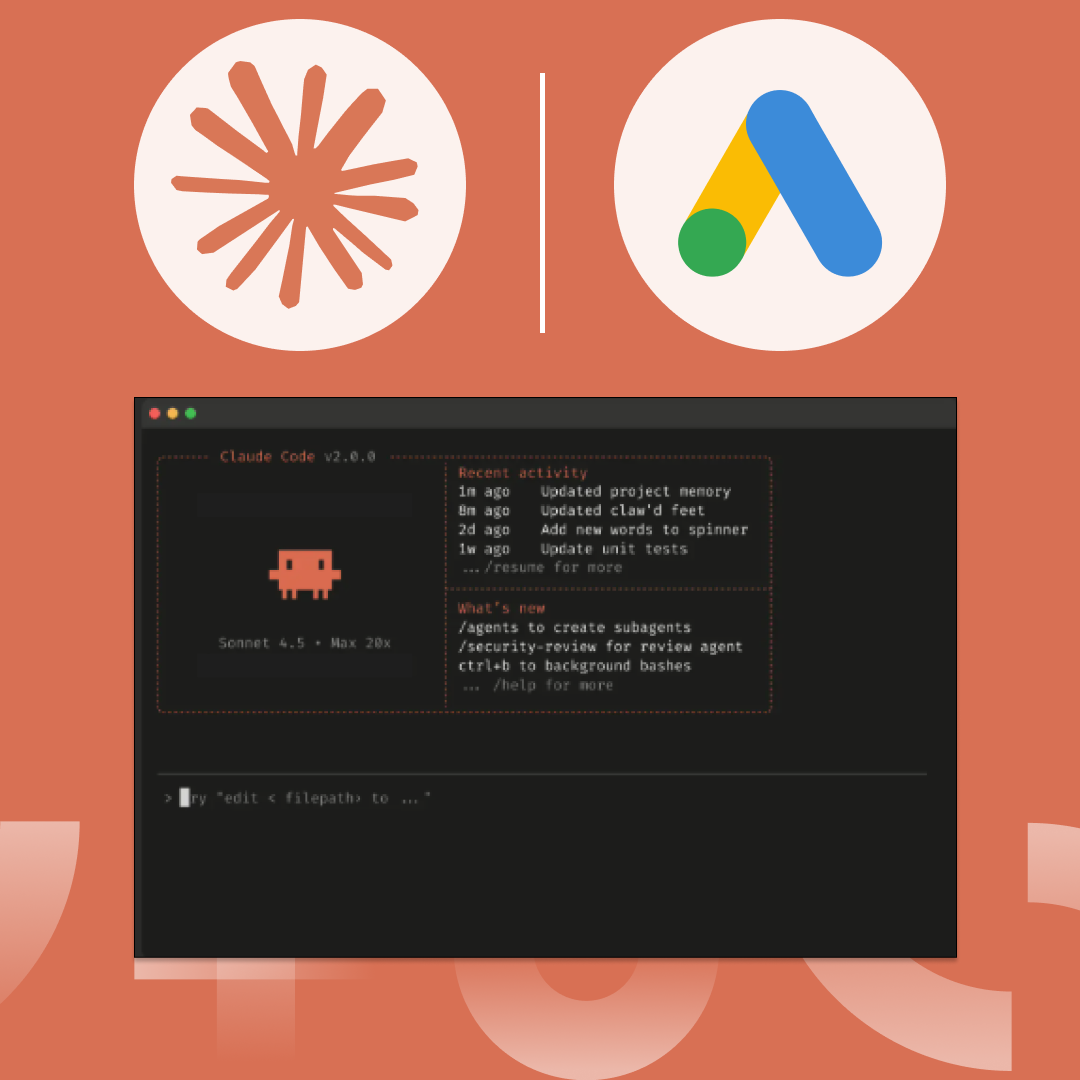
Using Claude Code, you can give Claude direct, live access to your Google Ads account via the API. No copy-pasting. No manual exports. No paid third-party tools. Just ask a question and Claude pulls the answer straight from your account data.
This guide walks you through the full setup in about 30–45 minutes. By the end, you'll be able to pull campaign data, run multi-step analysis, execute Google Ads scripts, and manage multiple accounts — all from a single conversation in your terminal.
This guide was written on Mac; Windows steps are noted where they differ.
What is Claude Code?
Claude Code is Anthropic's terminal-based AI coding tool. It can read, write, and execute code directly on your machine — meaning you can describe what you want in plain English and Claude handles the technical implementation. Unlike the standard Claude chat interface, Claude Code can interact with APIs, run scripts, and manage files on your computer.
What You Need To Get Started
- A Mac or Windows computer
- A Claude account with Claude Code access (Pro, Max, or Team)
- A Google Ads account with admin access
- About 30-45 minutes
Step 1: Install Claude Code
Mac:
Open Terminal (Cmd + Space, type "Terminal", hit Enter) and run:
curl -fsSL https://claude.ai/install.sh | bash
Wait for around 30 seconds to 1 minute and you will begin to see Claude install.
If it asks for your Mac login password, type it and hit Enter (you won't see the cursor move as you type, that's normal).
Once installed, launch it by entering:
claude
Windows:
Claude Code requires Git for Windows to run. Download it from git-scm.com/downloads/win and run the installer. Accept all the defaults throughout — no need to change anything.
Press Win + X and select Windows PowerShell (or Terminal) from the menu. A window with a blinking cursor will appear. This is where you’ll type and enter the following command.
irm https://claude.ai/install.ps1 | iex
Once installed, launch it by entering:
claude
For troubleshooting at this stage consult Claude's official guide: https://code.claude.com/docs/en/terminal-guide
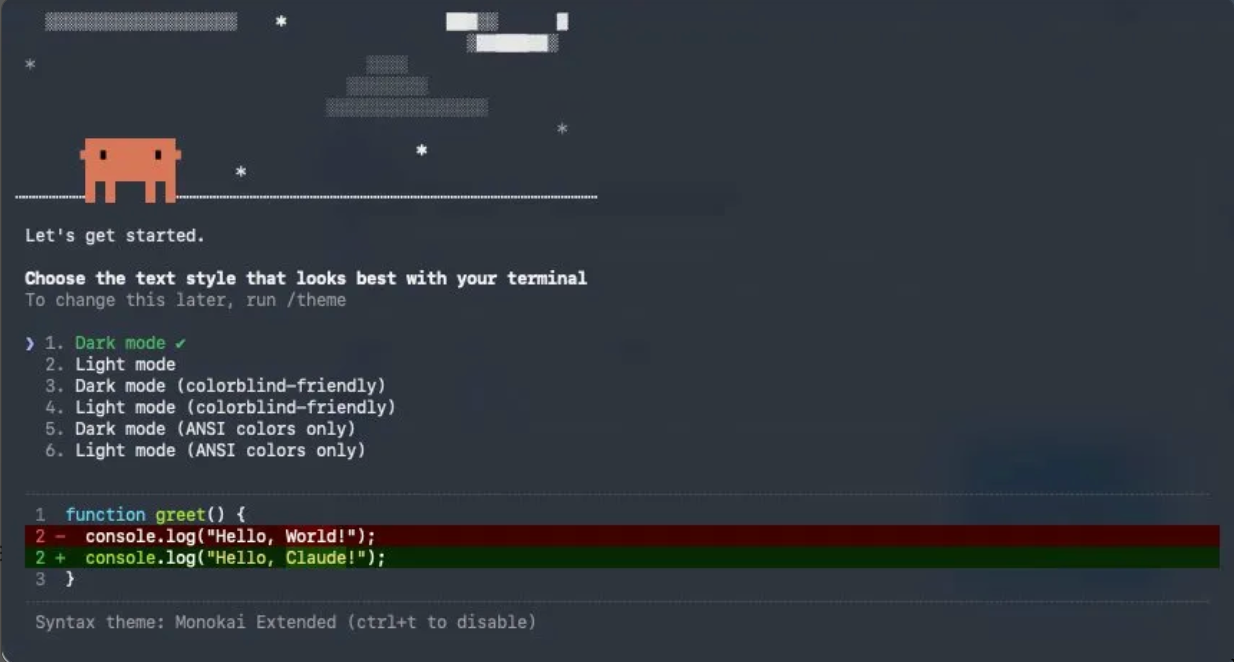
Once launched, it'll ask you to choose a theme, then log in with your Anthropic account.
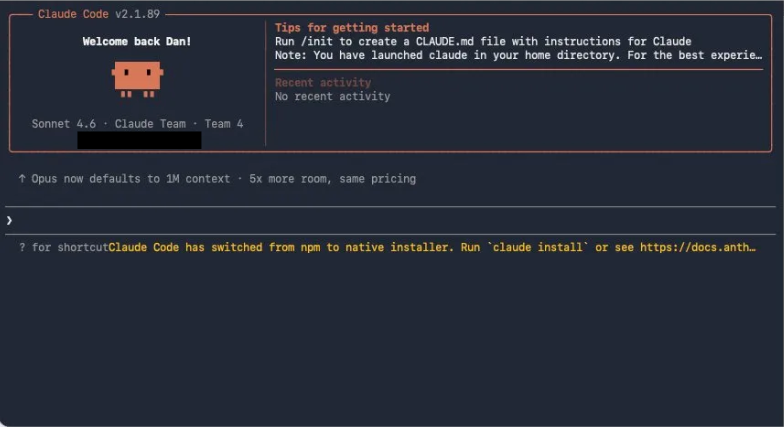
Once you see the welcome screen with your name, Claude Code is running.
Step 2: Create a Project Folder
In your terminal, create a dedicated folder for this project by inputting the following:
mkdir google-ads-claude
cd google-ads-claude
claude
This opens Claude Code inside your project directory. Everything Claude creates will be stored here, which keeps your files organised and makes your project portable. Skipping this step results in files just being put at desktop level which can get messy quickly.
I have chosen to call the project "google-ads-claude" but in reality you could make individual folders per client or sub-project to improve organisation.
Important: Every time you close and reopen Claude Code, you'll need to instruct it to navigate to your chosen project folder first before launching it. If you just type claude from your home directory, Claude Code won't be in your project folder and won't apply your CLAUDE.md guardrails. To save time, once you're inside Claude Code you can ask it to create a terminal shortcut - in this case for the project google-ads-claude, I have made a shortcut that opens the right project just by typing ads into the terminal - to do this, use the following command in Claude COde:
Add an alias called "ads" to my ~/.zshrc that navigates to my google-ads-claude project folder and launches claude
Then run:
! source ~/.zshrc
From then on, you can launch Claude Code in the right folder with a single command from any terminal window.
To test it, close Claude Code by typing /exit, then in your terminal type the alias name you asked Claude to associate with porject. When Claude Code opens, check the path shown in the header — if it shows your project folder (e.g. ~/Documents/google-ads-claude), it's working correctly.
Step 3: Get Your Google Ads Developer Token
- Go to Google Ads and log in
- Click the wrench icon (Tools & Settings) in the top right
- Go to API Center
- Copy your Developer Token
- If you don’t have a developer token, you will have to request one filling out your details:
- Company Name
- Company URL
- Company Type
- Intended Use
- Principal place of business
- If you don’t have a developer token, you will have to request one filling out your details:
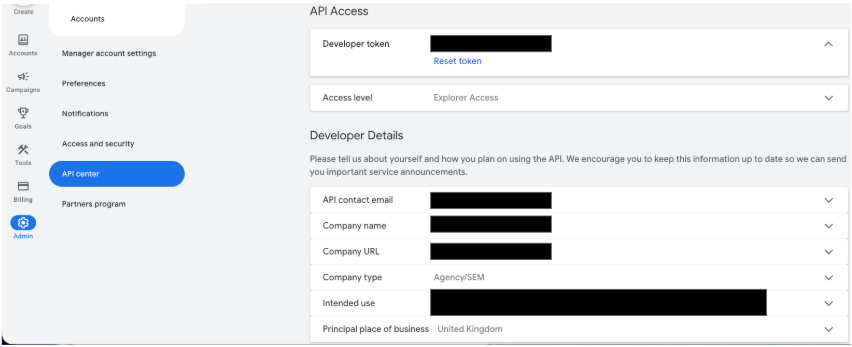
Note: If you don't see API Center, you may need a Manager (MCC) account. Standard accounts don't have API access by default.
Step 4: Create OAuth Credentials in Google Cloud
This is the most involved step, but you only do it once. The steps are identical on Mac and Windows - it's all done in your browser.
- Go to console.cloud.google.com
- Click "Select a project" (top left) → "New Project" → name it anything (e.g. "Ads Claude") → Create
- Go to APIs & Services → Enable API & Services → Library → search for "Google Ads API" → click Enable
- Go to APIs & Services → Credentials → "+ Create Credentials" → "OAuth 2.0 Client ID"
- If prompted to configure a consent screen: choose External, fill in an app name (avoid the word "Google" — it'll throw an error), add your email as both the support and developer contact, skip everything else and click “Save and continue”. Note: If you're using a personal Google account rather than Workspace, this option won't be available. Keep your app in Testing mode instead, which limits access to the test users you've explicitly added.
- Back on Create Credentials → choose Desktop App → name it anything → Create
- A popup appears with your credentials. Click Download JSON and save it to your Desktop → click Done
Step 5: Generate Your Refresh Token (Claude Does This For You)
Go back to Claude Code in your terminal and type:
Help me generate a Google Ads API refresh token using the OAuth client secret JSON file I saved to my Desktop
Claude will:
- Find the JSON file you downloaded
- Install the required Python libraries
- Write an OAuth script
- Run it and open a browser window for you to log in to Google
- Print your Refresh Token, Client ID, and Client Secret
When it asks permission to run commands, choose "Yes, and don't ask again for similar commands in this session" to keep things moving.
Security note: Keep these credentials private. Don't share screenshots or conversations that contain them.
Step 6: Save Your Credentials
Once Claude has printed your credentials, tell it:
Save my Google Ads credentials as environment variables and also create a google-ads.yaml file using the credentials that were just printed. My developer token is [YOUR_DEVELOPER_TOKEN]
Note: The developer token is the token you generated from the Google Ads interface.
Claude will handle this differently depending on your OS:
- Mac: It will save credentials to ~/.zshrc and create ~/google-ads.yaml
- Windows: It will save credentials as System Environment Variables and create google-ads.yaml in your user folder
Then reload your credentials:
Mac - type in claude code:
! source ~/.zshrc
Windows: Close and reopen your Command Prompt window — this automatically loads the new environment variables.
Step 7: Test the Connection
Now for the moment of truth. Type:
Install the Google Ads Python library and pull a list of all my campaign names
Claude will write a Python script, execute it, and return your campaign names. If you see your actual campaigns listed - you're live.
Using a Manager (MCC) Account?
If you manage multiple client accounts under an MCC, tell Claude:
Update the script to use [YOUR_MCC_ID] as the login_customer_id to pull all child accounts underneath it
This gives Claude access to all client accounts in one go.
Your connection is working. Before you start using it, take 10 minutes to set up these safety guardrails.
Putting Guardrails on Claude Code: Setting Up Safely Before You Start
Before you start running analysis and making changes, spend 10 minutes setting up the following guardrails. Claude Code is powerful - which means the risks of a misconfiguration or a runaway script are real. Here's how to protect yourself properly.
1. Create a Read-Only Credential File
If you are just using Claude Code for day-to-day analysis and reporting, you don't need write access at all. Tell Claude Code:
Create a separate google-ads-readonly.yaml that only has read permissions, and lock down the file so only I can read it
Only switch to your full credentials when you explicitly need to make changes to the account. Once you've set up your CLAUDE.md file in guardrail 5, Claude will use the read-only credentials automatically at the start of every session - no need to think about it again.
2. Lock Down Your Credential Files
Tell Claude to tighten the permissions on your credential files:
Mac:
Set the file permissions on google-ads.yaml and ~/.zshrc to only be readable by me
Windows:
Lock down the google-ads.yaml file so only my Windows user account can read it
3. Set an API Quota Limit in Google Cloud Console
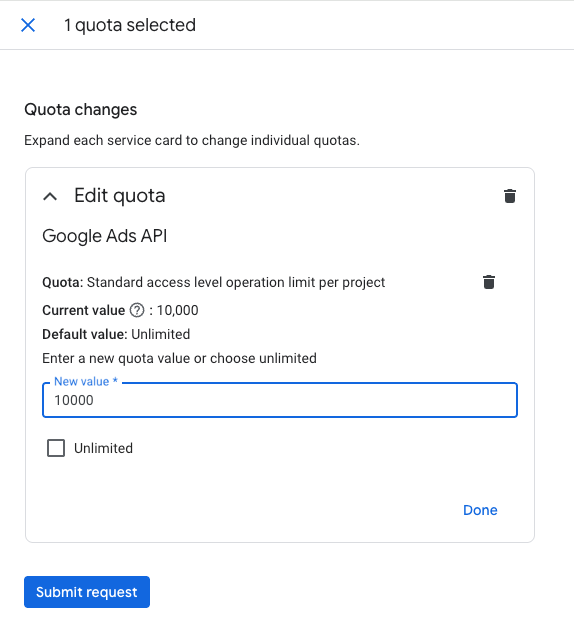
This prevents runaway scripts from hammering the API overnight. In Google Cloud Console (same steps on Mac and Windows — done in browser):
- Go to APIs & Services → Google Ads API
- Click the Quotas & System Limits tab
- Select Basic access level operation limit per project
- Click Edit and set the value to 10,000
- Click Done → Submit request
This is well above what you'd realistically use in a day (a full audit uses roughly 20–50 operations), but creates a safety ceiling before Google's own hard limit of 15,000. The quota resets on a rolling 24-hour basis.
4. Restrict Your OAuth App to Internal Users Only
In Google Cloud Console, go to APIs & Services → OAuth consent screen → Audience and check your app's user type.
If you're on Google Workspace: Confirm it's set to Internal. This means only users within your own organisation can authorise the app — nobody outside can use your credentials even if they somehow obtained them.
If you're on a personal Google account: The Internal option won't be available. Instead, make sure your app's publishing status is set to Testing and that only your own email is listed under Test Users. This achieves the same result — only explicitly listed accounts can authorise the app.
5. Create a CLAUDE.md File with a Confirmation Rule
A CLAUDE.md file gives Claude permanent instructions that apply automatically at the start of every session. Tell Claude:
Create a CLAUDE.md file with the following rules:
- Always use google-ads-readonly.yaml for analysis and reporting tasks
- Before making any changes to a live Google Ads account, show me exactly
  what will be changed, which account and campaign it affects, and ask me
  to type CONFIRM before proceeding
- Always export the current state of anything being changed to a CSV backup
  file before applying bulk changes
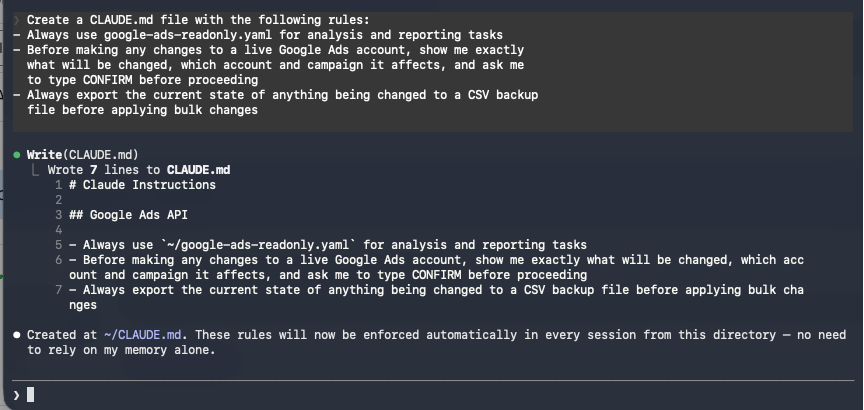
This is your most important guardrail. By doing this, Claude will never make changes without a clear confirmation step, in every single session, on any machine.
6. Add Dry-Run Mode to Any Automated Scripts
Before letting any script run on a schedule, ask Claude to build in a safety switch:
Add a dry-run mode to this script that logs what it would do without actually doing it, and default to dry-run unless I explicitly pass --live as an argument
This means automated scripts can never accidentally run live until you've manually verified the output looks correct at least a few times first.
7. Check Change History After Every Session
Make it a habit to check Tools & Settings → Change History in Google Ads after any session where you've applied changes. It's a 30-second check that gives you a complete audit log of everything modified and when.
What to Do Next
You now have Claude Code connected directly to your Google Ads account with proper guardrails in place. The setup is done — from here, everything happens through conversation.
A good first task is a search term audit. Ask Claude to pull your search term report for the last 30 days, flag anything irrelevant that received clicks, and draft a negative keyword list. It's the kind of analysis that normally takes an hour or more per campaign, and Claude can do it in minutes across every campaign in your account.
From there, you can start exploring what else the integration makes possible — cross-account performance comparisons, keyword-level bid analysis, automated Google Ads scripts, or custom reports built exactly the way you want them. If you can describe it, Claude can usually build it.
Frequently Asked Questions
Do I need to be technical to use Google Ads with Claude Code? No. The setup requires following steps carefully, but Claude Code handles all the actual coding. You just describe what you want in plain English.
Is it safe? Can Claude make changes to my account? By default, Claude Code will always show you what it's about to do and ask for your approval before making any changes. With the guardrails above in place — read-only credentials for analysis, a CLAUDE.md confirmation rule, and dry-run mode on scripts — the risk is very low. Nothing touches your live account without you explicitly saying yes.
Does this work for agencies with multiple client accounts? Yes — connect your MCC account once and Claude has access to all client accounts underneath it.
What happens if I hit the API quota limit? Claude will return an error saying the API is temporarily unavailable. Nothing breaks — you just wait until the 24-hour window resets. You can raise the limit in Google Cloud Console at any time.
Should I be worried about credential security? The main risk is credentials being stored on your machine. The guardrails above — locked file permissions and internal-only OAuth — significantly reduce this risk. Never paste your credentials into other apps, share screenshots containing them, or commit them to a code repository. If you ever think they've been compromised, revoke them immediately in Google Cloud Console and regenerate.
What kinds of tasks can Claude Code handle once it's connected to Google Ads? Pretty much anything you'd normally do manually in the Google Ads interface or with scripts. Common examples: analysing search term reports to find wasted spend, comparing performance across campaigns or accounts over custom date ranges, identifying underperforming ad groups, generating Google Ads scripts for automated rules, pulling keyword-level data for bid analysis, and building custom reports that would normally require a third-party tool. If you can describe what you want in plain English, Claude can usually write the API query to get it done.
How do I relaunch Claude Code after I have closed it? Open your terminal, navigate to the project folder you created in Step 2, and type claude. If you set up the shortcut alias in Step 2, you can launch it with a single command instead. Your credentials, CLAUDE.md rules, and project files will all still be in place.
How much does connecting Google Ads to Claude Code cost? The Google Ads API is free to use. You'll need a Claude subscription that includes Claude Code access - Pro ($20/month), Max ($100/month), or Team ($30/month per seat). Beyond that, there are no additional tools or subscriptions required. Everything in this guide uses free, open-source libraries and Google's own APIs.